This guide walks new users through logging their first workout in Avatone. After onboarding and creating an avatar, users tap Start a Workout to begin. They can choose a recommended beginner routine, create their own routine, or jump straight into an empty workout. The guide explains how to build a routine by adding exercises, using filters, checking estimated time and calories, reordering items, and saving routines for later. Users can also launch directly into a live session where they add exercises as they go, track sets, reps, weight, time, and distance, and use rest timers and notes. The workout can be saved and turned into a repeatable routine. The guide ends by encouraging users to join the community for help, reminding them that Avatone is still evolving, and celebrating the XP earned from completing a workout.
How to log a workout with Avatone
Updated: 2025-11-28
Hello and welcome to the official guide on how to log your very first workout using the Avatone app! My name’s Parsa, I’m the creator of Avatone, and I’m here to make your workout logging experience as easy as possible.
Getting Started
Once you complete your onboarding and create your custom Avatar, you should be greeted with this screen! (see below). To log your first workout, click that big blue “Start a Workout” button!
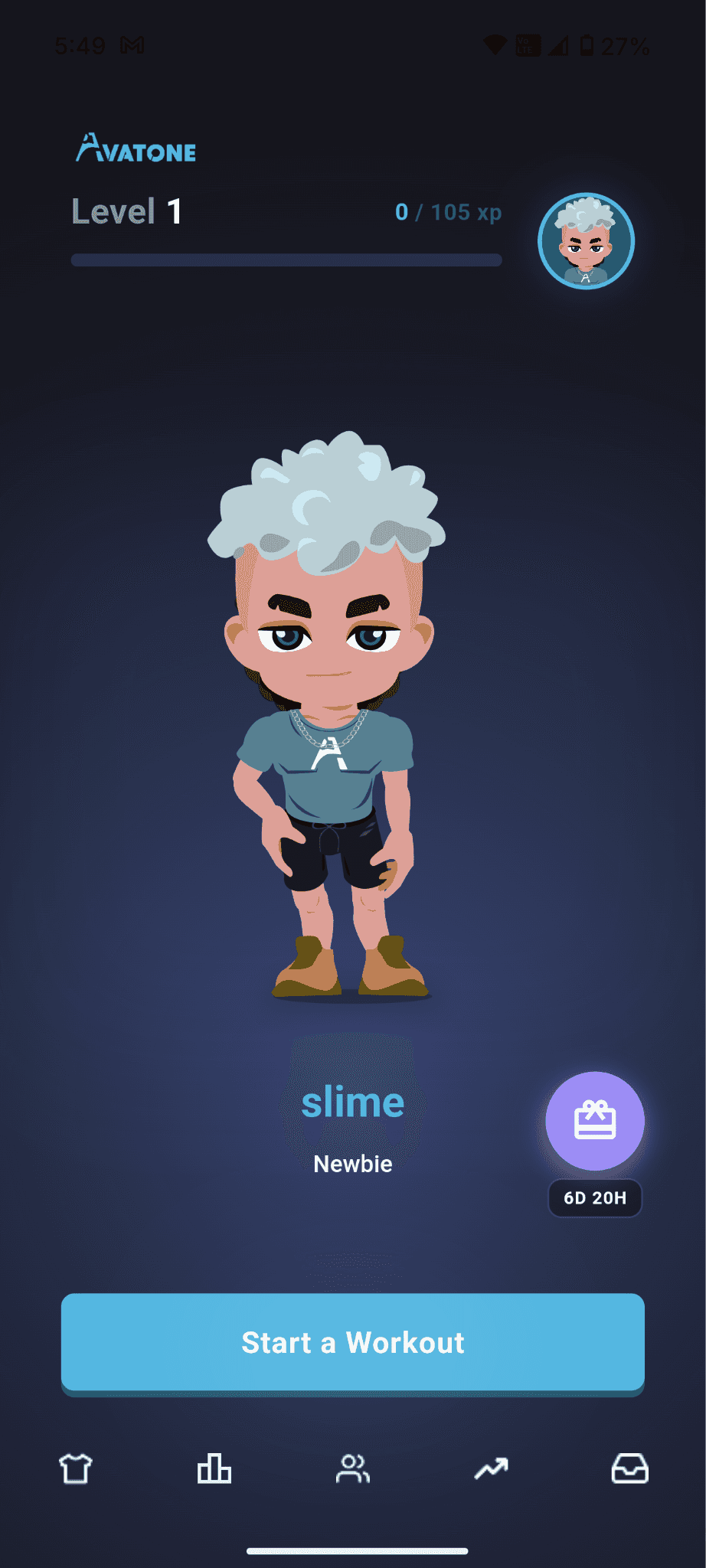
Starting a workout
Right away, the first thing you’ll see is all of your saved routines. If it’s your first time using Avatone, you won’t have any saved routines yet, but don’t fret! I’ll help you get started :)
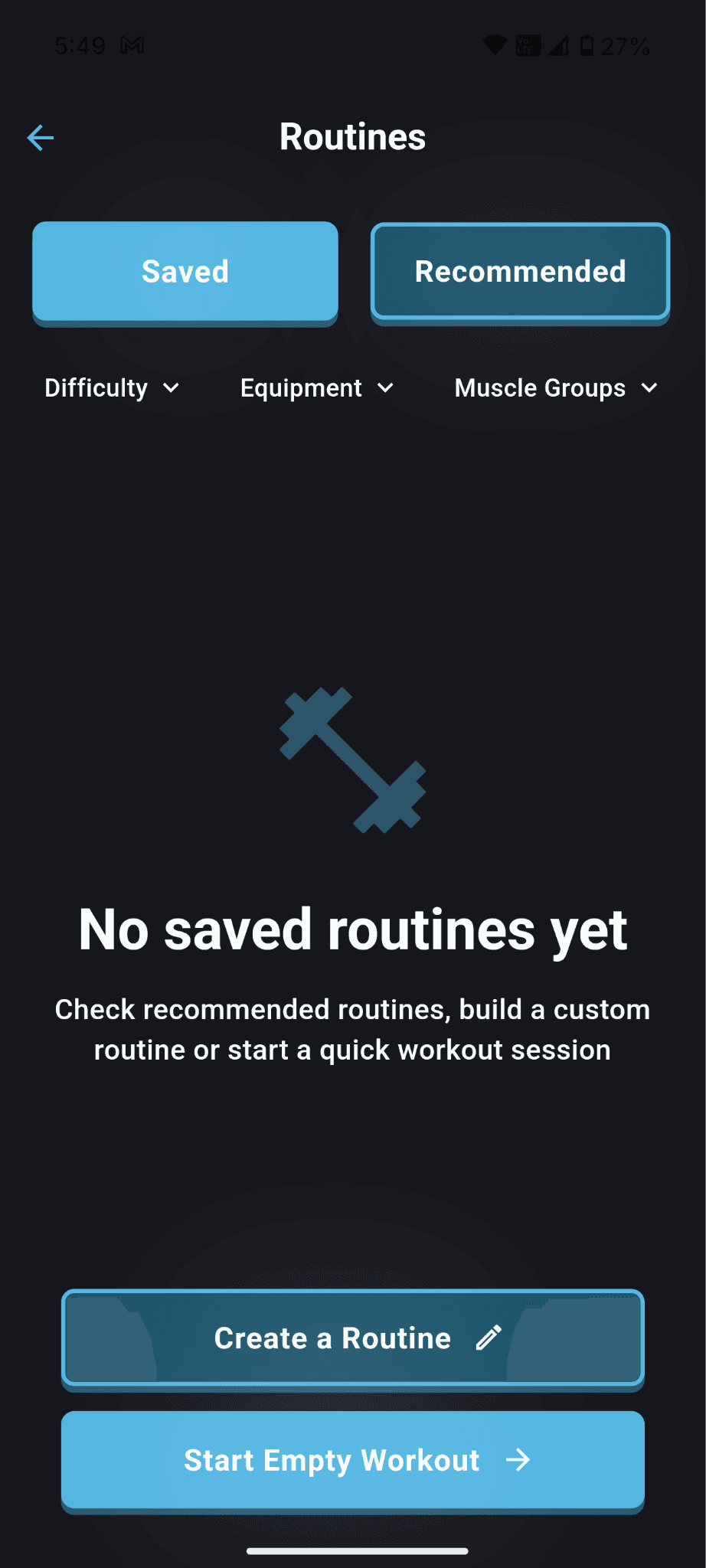
Recommended Routines
If you’re a complete beginner I recommend checking out the “recommended” tab right away. Here you can find beginner friendly, simple routines to follow, these are created by certified personal trainers. You can also easily filter by muscle groups, difficulty, and equipment to find a routine that works for you!
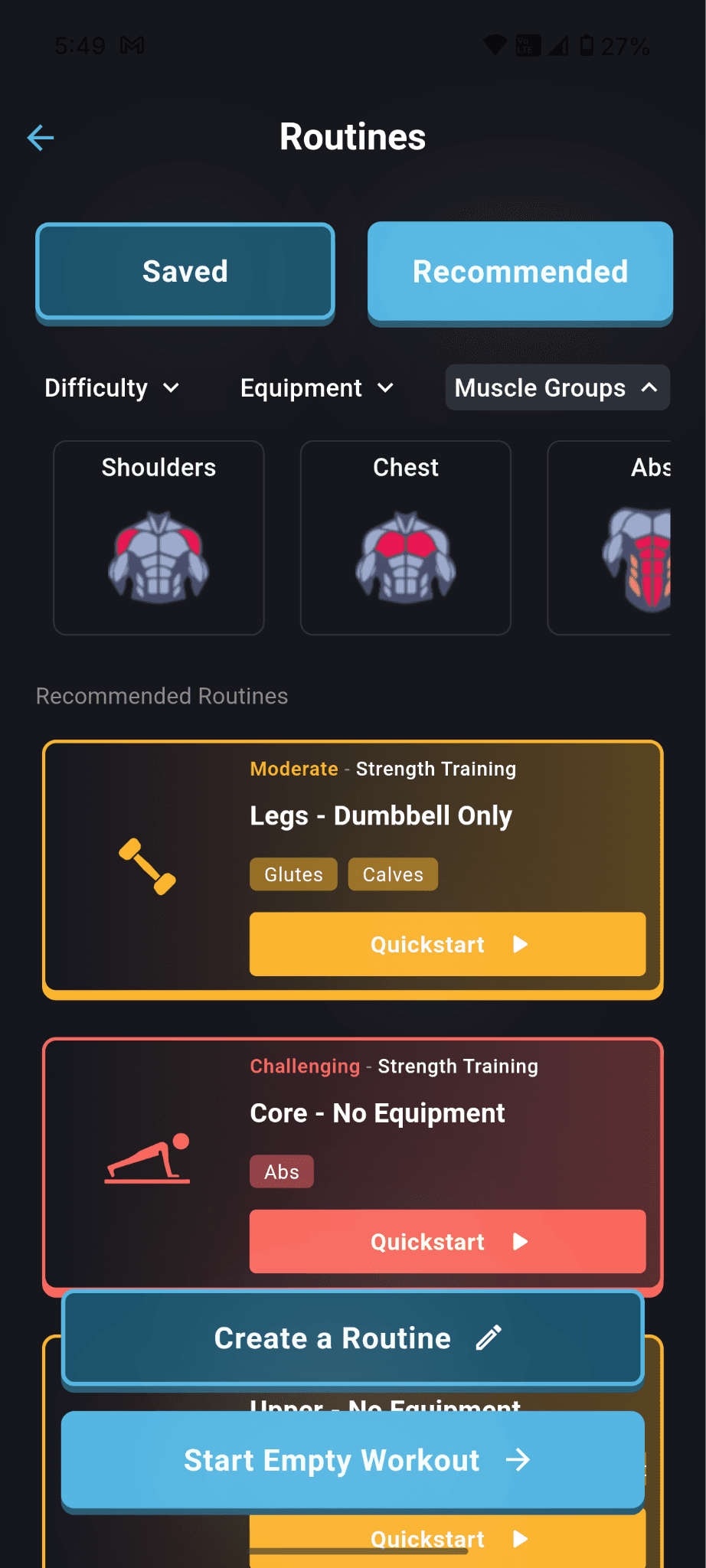
What’s next?
Now here you have two options. If you’re not at the gym yet and plan to make a routine for an upcoming session or week, click the button labeled “Create a Routine” to create a workout you can start later! Alternatively, if you’re already at the gym and want to jump right in, click “Start Empty Workout” this will throw you right into the live session where you can add your exercises on the fly.
Note: Don’t worry about the timer at the top, it is for your own tracking purposes and will not affect your XP or stats!
Creating a Routine
If you like to have everything planned out and decided to create a routine, that’s great! Here’s how you do it.
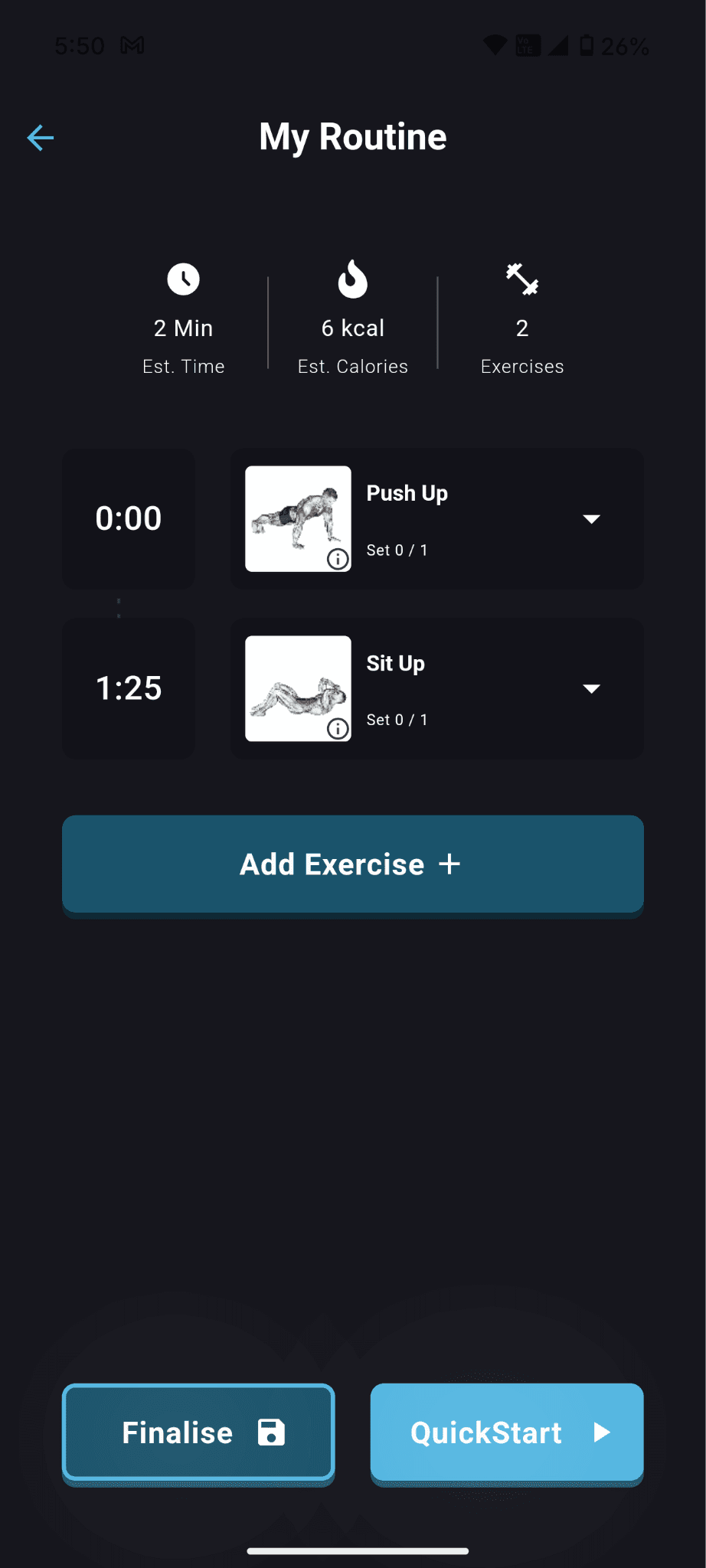
At the top of bottom of the screen you’ll see a “add exercise button,” click that to open the exercise library, where you can find all the exercises you want in this routine!
Tip: Overwhelmed by a massive list of exercises? Click the filters to search for more specific exercises (beginner friendly, at home, ab exercises, etc.!)
Tip #2: You can tap on any exercise to see more details, how to perform, common mistakes, etc. Your exercise specific insights will go here as well!
Once you start to add some exercises, the top of the routine builder will show some extra data like the estimated time and calories this routine will take!
Tip: Press and hold an exercise to reorder, or swipe left to delete
When you’re ready, either “Finalise” the routine to save it for later or quickstart to jump right in!
Note: If you choose to quickstart the routine, don’t worry, you’ll still be able to save your workout if you want to do it again later :)
Live Session
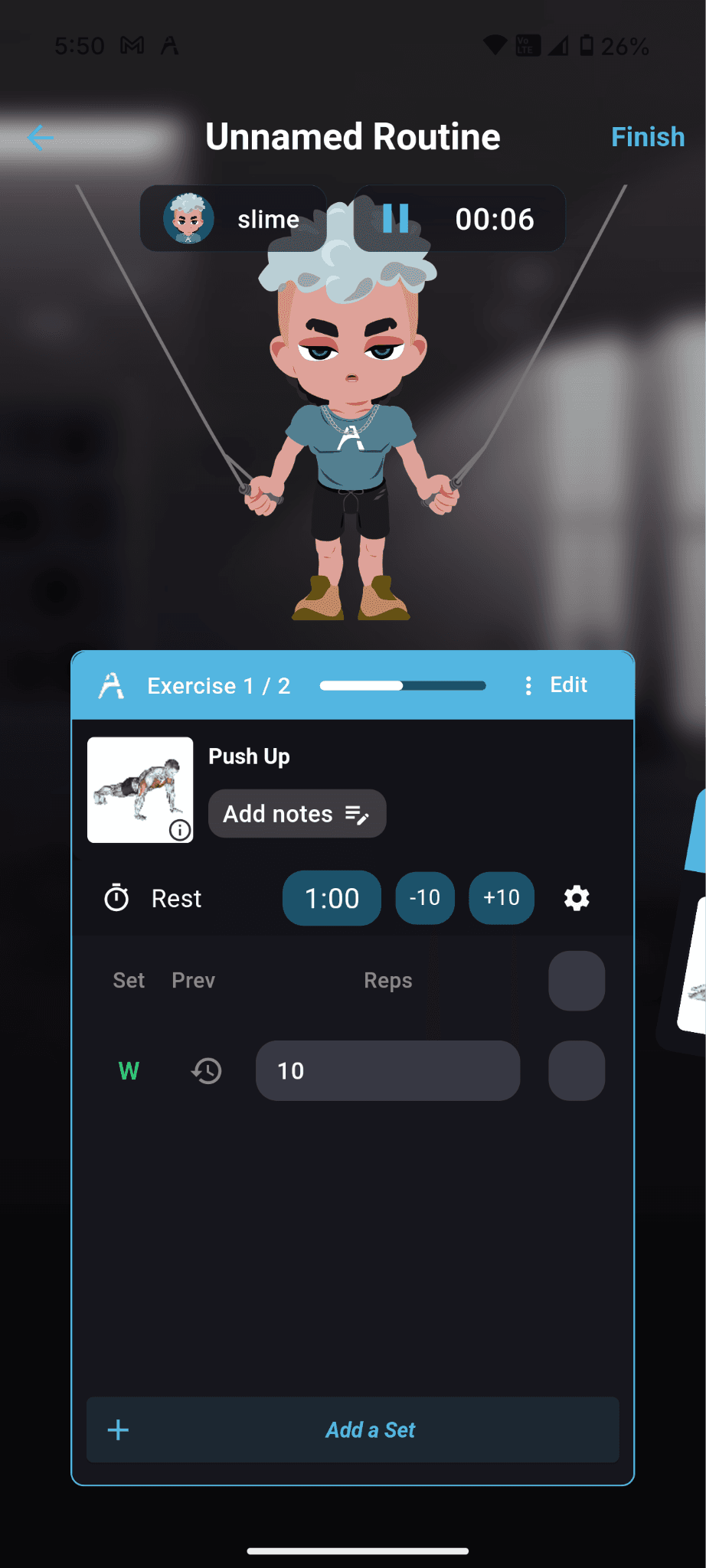
Congrats on jumping into your first workout! To get here you either quickstarted a routine, or jumped right in with the “Start Empty Workout” button.
On your screen, you’ll see the total time passed, your name, and Avatar all ready to go!
If you clicked “Start Empty Workout” then you won’t have any exercises added yet, click “add exercise” to get started!
Once you’ve added an exercise, you just enter exactly what you do! Sets, reps, weight, time, distance, etc!
Note: The exercise library even contains sports, calisthenics, cardio, and more! Log it all to never miss any XP
Tip: Utilize the rest timer and notes to get the most of your tracking!
Tip: You can enter the routine builder at any time to reorder, add, and delete exercises as needed. You can also add a new exercise by scrolling to the last exercise card!
Once you’ve checked off every exercise and completed your workout, hit Finish and save it! You can also save/update your workout as a routine if you want to repeat it later.
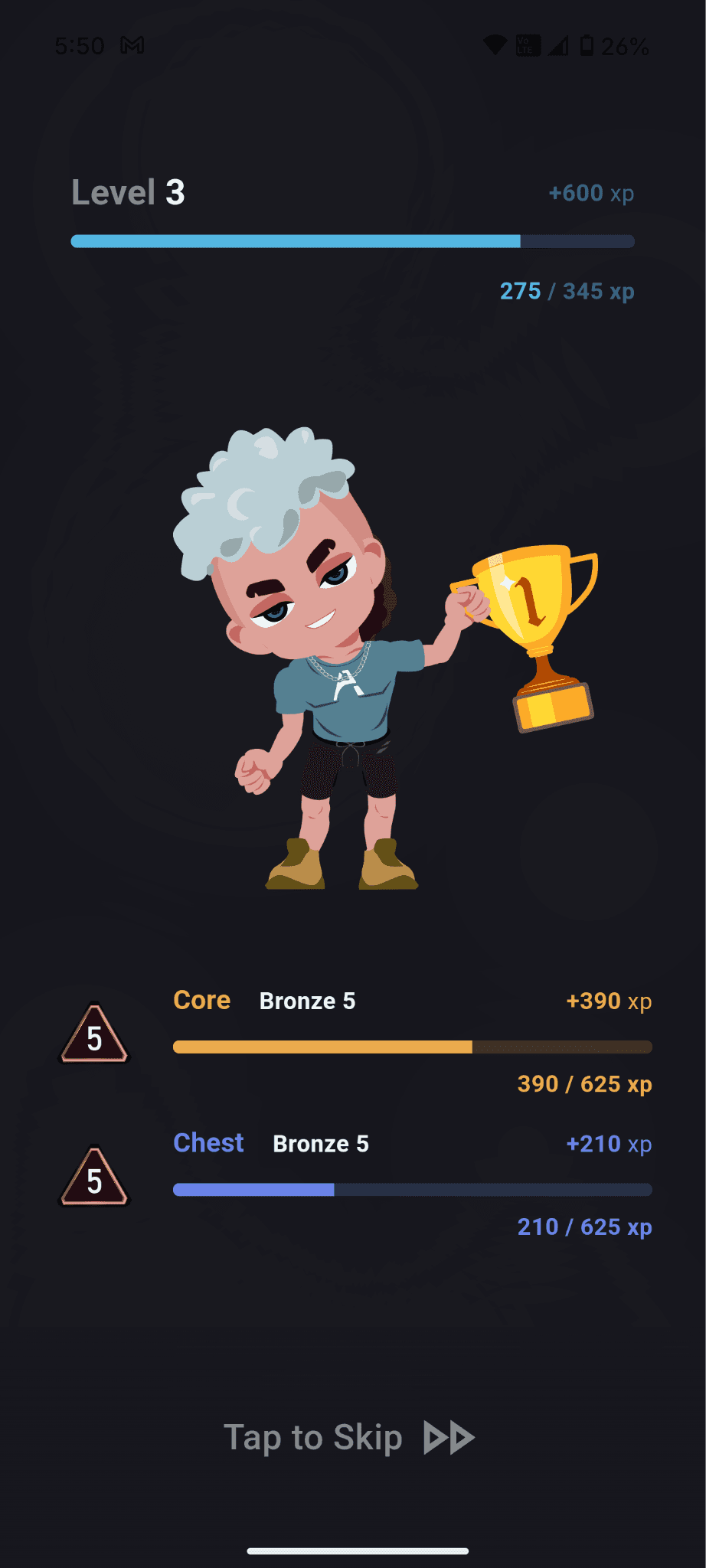
Boom! You just logged your first workout and hopefully got some of that sweet, sweet XP.
Conclusion
Hopefully this guide was extensive enough to help even the noobiest of lifters get started. If you have any questions that weren’t answered in this guide, you can join our community where hundreds of happy users can help you out!
Note: Avatone is still in early development and many things are still subject to change! Will do my best to keep the guides updated as they do 🙂
Until next time Avatonians!
- Parsa